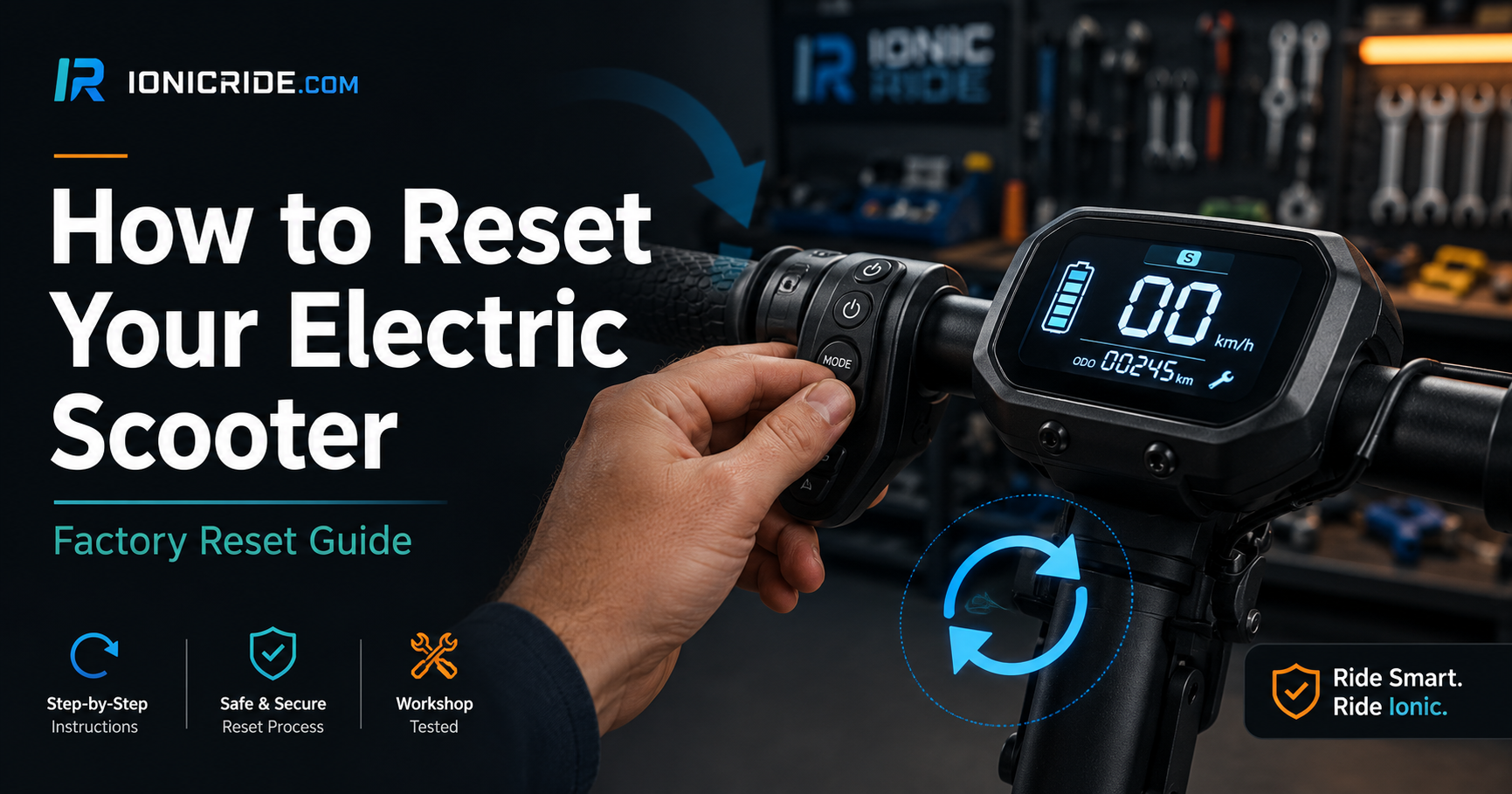
How to Reset Your Electric Scooter — Factory Reset Guide
How to Reset Your Electric Scooter — Factory Reset Guide for All Major Brands (2026)
Most scooter reset guides online are vague, generic, and wrong for at least half the models they claim to cover. "Hold power button and throttle simultaneously" — sure, for which model? For how long? What does the confirmation look like? What if it doesn't work?
This guide covers the exact button combinations, app procedures, and confirmation signals for every major brand in the UAE market — sourced from official manufacturer documentation and verified against specific model behaviour. It also answers the two questions people actually search for most — where is the reset button, and how to reset the battery — plus a section on when a reset won't fix your problem, because that matters too.
Jump to your brand using the links below.
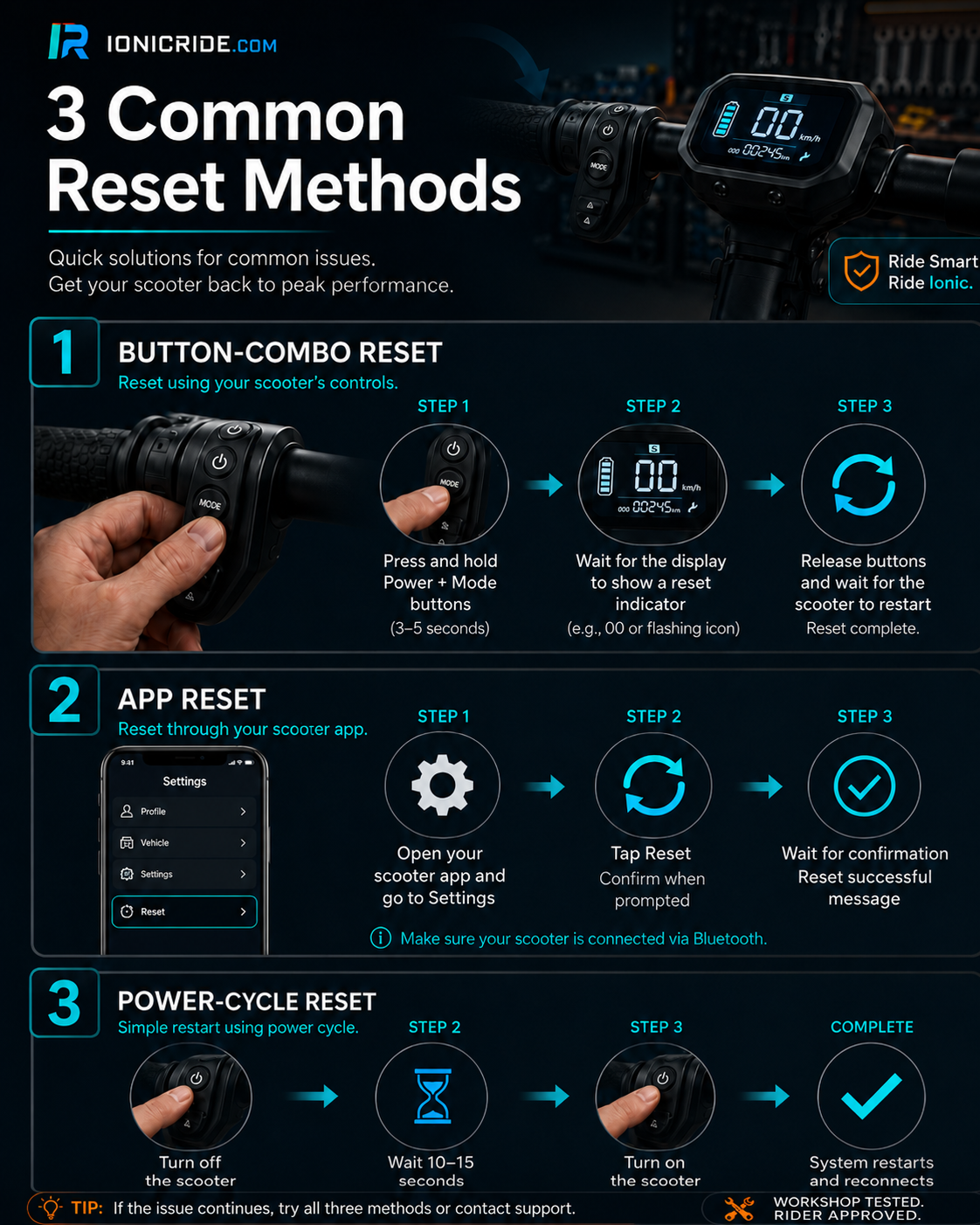
When to Reset — and When It Won't Help
A reset is a software fix. It solves software problems. It cannot fix hardware problems — and most of the things that go wrong with electric scooters in Dubai are hardware. Knowing which category your problem falls into saves you time and prevents the frustration of resetting a scooter three times and watching the same problem reappear.
Reset Will Help vs Reset Won't Help
| Problem | Reset Will Help? | Real Fix |
|---|---|---|
| Scooter won't pair with app via Bluetooth | Yes — try this first | Factory reset clears Bluetooth pairs |
| Persistent error code on display | Sometimes | Reset if software glitch; workshop if hardware fault |
| Throttle unresponsive / stuck | Sometimes | Soft reset first; throttle cable if persists |
| Display frozen or showing wrong data | Yes | Soft reset usually sufficient |
| Speed mode won't change | Yes | Factory reset clears mode lock |
| Scooter locked by previous owner | Yes | Factory reset clears PIN/lock |
| Range suddenly reduced | No | Battery health check — hardware issue |
| Scooter won't charge | No | Charger, charging port, or BMS issue |
| Motor making grinding/clicking noise | No | Motor or bearing failure — workshop |
| Brakes not working | No | Brake pads, cable, or disc — mechanical |
| Flat or punctured tyre | No | Tyre repair or replacement |
| Battery swollen or overheating | No — dangerous | Stop riding immediately, workshop urgently |
- Battery must be at least 30% charged. A reset interrupted by a flat battery can corrupt firmware. If the scooter battery is low, charge it first.
- Try a soft reset first. Hold power button 5–10 seconds until display goes off. Wait 30 seconds. Power back on. This fixes most temporary glitches without wiping settings.
- The scooter must NOT be locked, charging, or in the middle of a ride when you attempt a factory reset. Most reset procedures will fail or behave unexpectedly in these states.
Where Is the Reset Button on an Electric Scooter?
This is the question that sends most people down the wrong path, so let's clear it up: most modern branded electric scooters do not have a physical reset button at all. On a Xiaomi, Segway-Ninebot or Navee, the "reset button" is the button combination or the app procedure in the brand sections below — there's no separate hidden button to find. Manufacturers moved away from physical reset buttons years ago in favour of control-combo and app resets.
Where a physical reset button does exist, it falls into three cases:
Reset Button — Where to Look, by Scooter Type
| Scooter type | Physical reset button? | Where / how |
|---|---|---|
| Xiaomi, Segway, Navee (modern e-scooters) | No physical button | Use the button combo or app in the brand sections below |
| Budget / older / no-name e-scooters | Sometimes | Small recessed button near the charging port, under the deck, or in the battery compartment — often needs a pin or paperclip; hold 5–10 sec |
| Mobility scooters (Go-Go, Pride, iScooter mobility) | Yes — a circuit breaker | On or near the battery pack / tiller base; it pops out on overload — push it back in to reset (see the Mobility section) |
- Power the scooter fully OFF and, on key models, remove the key before touching anything.
- If you have to lift a rubber flap or panel, don't use metal tools near exposed wiring.
- A recessed button usually needs a plastic pin or paperclip — press and hold 5–10 seconds.
- If you can't find any button, your scooter almost certainly doesn't have one — use the app or the control-combo method for your brand instead.
- 1Turn the scooter ON by pressing the power button
- 2Squeeze and hold the brake lever fully — keep it held throughout
- 3While holding the brake, press the accelerator 5 times in quick succession
- 4Release the brake lever
After reset: the scooter unpairs from Xiaomi Home App. Re-add as a new device in the app.
- 1Turn the scooter ON
- 2Simultaneously hold: brake lever + accelerator + power button
- 3Hold all three for 7 seconds
- 4Release all three
The scooter is locked (PIN active) or charging. Unlock first or unplug charger before attempting.
- 1Open the Xiaomi Home App on your phone. Ensure Bluetooth is on and the scooter is connected (shows "Connected" in the app).
- 2Tap your scooter in the device list to open its control page
- 3Tap the three-dot menu (⋮) in the top right corner of the screen
- 4Tap Settings or More Settings from the dropdown
- 5Scroll down to find "Restore Factory Settings" or "Factory Reset"
- 6Tap it and confirm with OK in the popup
Note: exact menu labels vary slightly between app versions. If "Restore Factory Settings" doesn't appear, check under "About" or "System" sections of the settings menu.
- 1Turn the scooter OFF completely — hold power until display goes dark
- 2Using both hands, simultaneously press and hold: Power button + Throttle (accelerator) + Brake lever
- 3Hold all three for over 3 seconds
- 4Release all three when you hear beeps
This procedure resets Bluetooth pairing and all settings. The scooter will need to be re-paired in the Mi Home App.
- 1Hold the power button for 5–10 seconds until the display goes completely dark
- 2Wait 30 seconds — do not touch anything
- 3Press the power button normally to turn back on
Use for: app won't connect, display glitch, unresponsive throttle. Fixes most temporary issues without any data loss.
- 1Turn the scooter ON by pressing the power button
- 2Hold both the throttle and the brake lever fully down simultaneously — both all the way
- 3While holding both, turn the scooter OFF by pressing the power button
- 4Release the throttle and brake lever
- 5Turn the scooter back ON by holding the power button for 3 seconds
- 1Open the Segway-Ninebot App. Ensure scooter is connected via Bluetooth (blue icon active).
- 2Tap your scooter to open the device page
- 3Tap the settings/gear icon or navigate to Device Settings
- 4Find and tap Factory Reset or Restore Factory Settings (on some app versions this is under Advanced Settings)
- 5Confirm when prompted
- 1Hold the power button for 3–5 seconds until the display turns off
- 2Wait 30 seconds
- 3Press the power button once to turn back on
If the power button appears unresponsive or the scooter is completely frozen:
- 1Press and hold the power button for 10 seconds continuously
- 2This forces a restart and can resolve any temporary software issues causing the power button to malfunction
- 3If still unresponsive: check battery level — a fully depleted battery may appear frozen
Inokim does not have a single button-combination factory reset. Configuration is managed through the display settings menu. To access and reset settings:
- 1Turn the scooter ON
- 2Press the + and − buttons simultaneously for 2 seconds to enter Settings Mode 1
- 3The display enters settings mode. Press + or − to navigate between modes. Long press the power button to return to main menu.
- 4Navigate through each setting and restore to default values manually:
Mode 1 — LCD Backlight brightness (low/medium/high)
Mode 2 — Speed Limit (6–25 km/h) → set to 25 for default
Mode 3 — Cruise Control (Y/N) → set to default
Mode 4 — Units (km/miles)
Mode 5 — Ambient light sensitivity (auto-light on/off threshold)
- 1Hold the power button until the display goes off (5–10 seconds)
- 2Wait 30 seconds
- 3Press the power button once to turn back on
If you need a complete factory reset (e.g. selling the scooter, persistent unresolvable error codes), contact your Inokim dealer or an authorised service centre. Inokim does not publish a consumer-level full factory reset procedure — the service reset requires dealer-level access to the controller.
Augment does not publish a consumer button-combination factory reset. Like several EU-market brands, settings are handled through the display and companion app rather than a control-combo. Here's what actually works:
- 1Soft restart first: hold the power button until the display goes off (5–10 seconds), wait 30 seconds, power back on. This clears most glitches, Bluetooth drops and display errors.
- 2Bluetooth issues: delete the scooter from your phone's Bluetooth list and the Augment app, then re-pair as a new device.
- 3Restore settings: adjust speed mode, speed limit and lighting back to default in the display menu or app individually — there is no single "restore defaults" beep.
If you're selling the scooter or chasing a persistent unresolvable fault, a full controller-level reset needs dealer/service access — Augment doesn't publish a user-level factory-reset combo. Ignore video clips claiming a secret button sequence; there isn't a verified one.
Dualtron scooters use the Minimotors app for most software-level adjustments. A full controller reset is performed through the app, not via a physical button combination.
- 1Download the Minimotors App from the App Store (iOS) or Google Play (Android)
- 2Register with any valid email and log in
- 3Tap "Search vehicle" and select your scooter model
- 4If prompted, enter the serial number (found under the deck or on packaging). Default start password is 0000
- 5Navigate to: Settings → System Settings
- 6Find Reset to Factory Settings or restore individual parameters as needed
Note: On some models, allow up to 24 hours after a reset before the speed limiter setting becomes active even if it appears applied. If the region setting affects speed, changing app region to USA may allow access to full speed limiter settings.
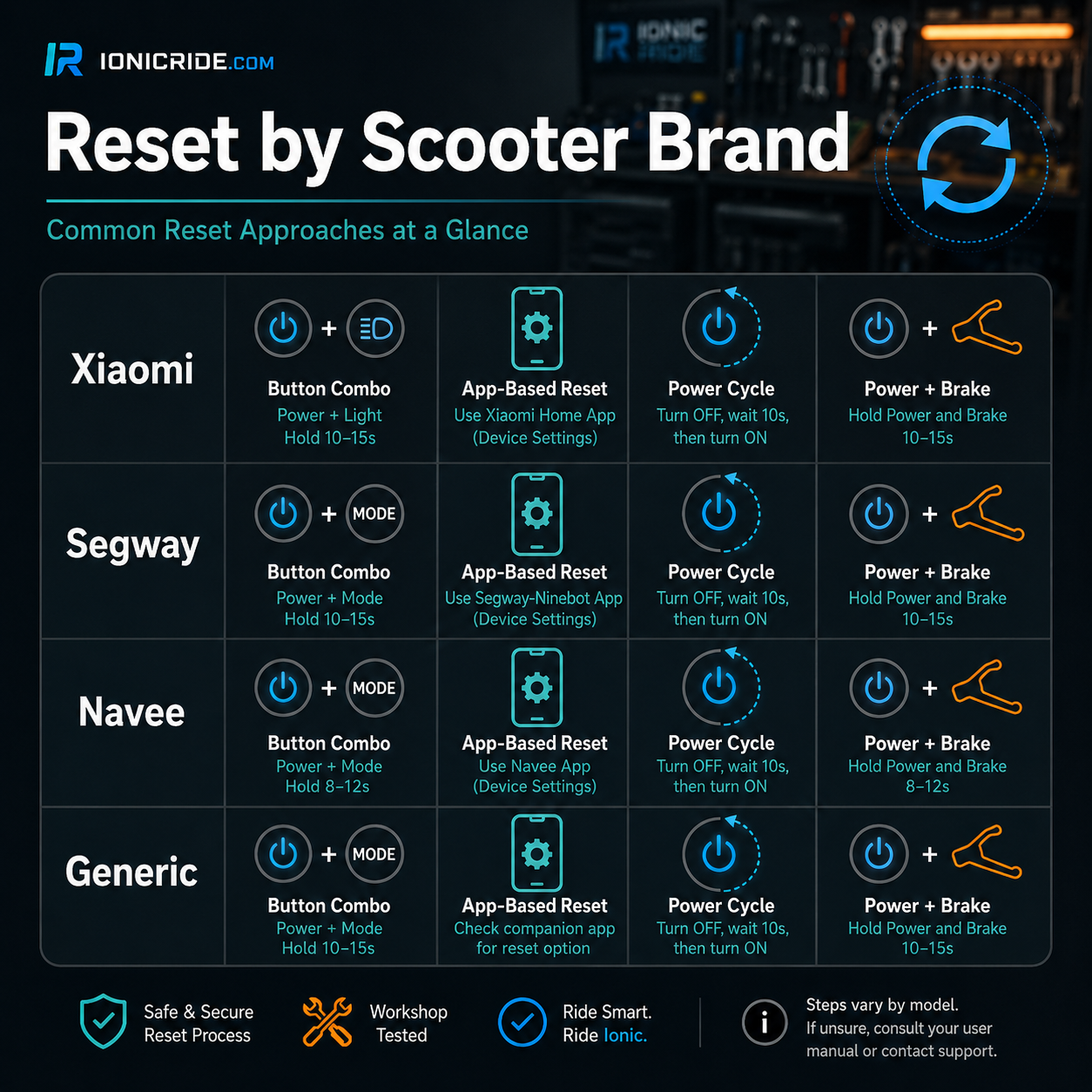
Most Dualtron models have a main power switch on the deck (near the charging port) that connects directly to the battery. This enables a true hardware reset:
- 1Use the handlebar power button to turn the scooter OFF
- 2Locate the deck-mounted main power switch — a physical button or rocker switch on the side or underside of the deck near the charging port
- 3Press/flip this switch to cut battery power completely
- 4Wait 3–5 minutes — this allows all capacitors to fully discharge
- 5Restore the deck switch, then power on normally via the handlebar button
For Dualtron Thunder 2, Thunder 3, and similar high-power dual-motor models: the deck switch disconnects both battery packs simultaneously. After reconnecting, the BMS performs a self-test on power-on. Allow the display to fully initialise before riding (30–45 seconds).
- 1Hold the power button until the display goes dark
- 2Wait 30–60 seconds
- 3Power back on normally
Unlike stand-up e-scooters, mobility scooters do have a real physical reset button — but it's a resettable circuit breaker, a safety feature that trips (pops out) when the motor or wiring is overloaded, not a settings reset. If your mobility scooter suddenly won't power on, this is the first thing to check.
- 1Turn the scooter OFF and remove the key
- 2Find the reset button — usually on or near the battery pack / tiller base, sometimes under the seat or on the rear shroud. It's a small button (often red or black) that will be sticking out if it has tripped
- 3Press it firmly back in until it stays flush
- 4Wait a minute, insert the key, and power on normally
A breaker that pops straight back out is telling you something — an overload (too much weight, a steep hill, a stalled motor) or an electrical fault. Don't tape it in or keep forcing it. If it trips repeatedly on flat ground, stop and have the motor, wiring and battery checked by a service centre.
Generic and no-name scooters don't have consistent reset procedures. These are the methods to try in order:
- 1Soft restart first: Hold power button 5–10 seconds → wait 30 sec → power on
- 2Button combination attempt: Turn OFF → hold Power + Throttle + Brake simultaneously for 3–5 seconds → release when beep or display flash
- 3If no response to step 2: turn ON first, then hold Power + Throttle + Brake → wait for beep
- 4Physical disconnect: If there is a deck-mounted power switch, toggle it off, wait 3 minutes, restore
- 5Check the app: If the scooter has a companion app, look for reset option in settings
If none of the above works: generic and unbranded scooters frequently have controller firmware that doesn't support user-initiated resets at all. The manufacturer did not implement a reset pathway. In this case, no combination of button presses will achieve a factory reset — the only option is a workshop controller replacement, which on a generic scooter often costs more than the scooter is worth.
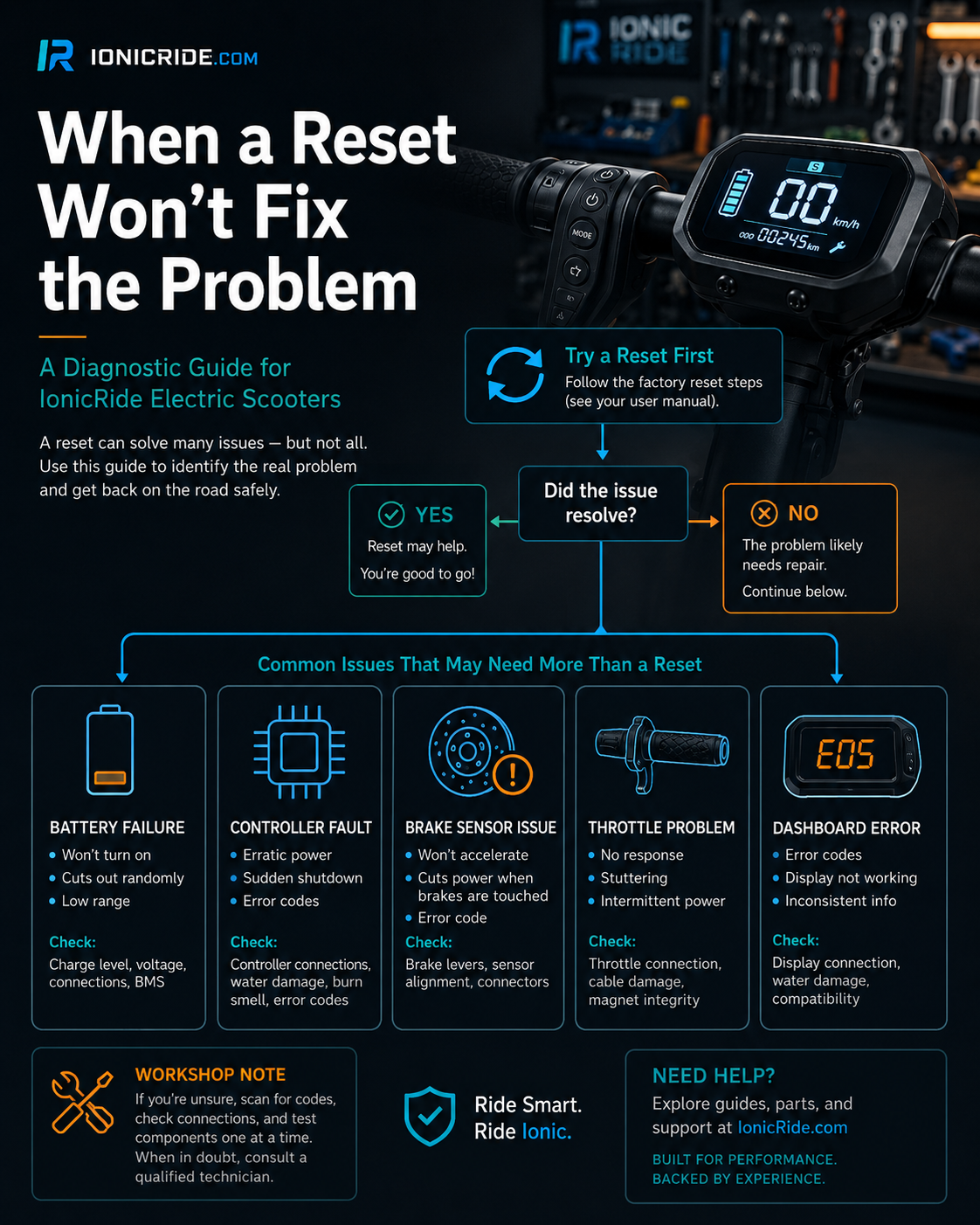
How to "Reset the Battery" (BMS) or Controller
People search for a way to "reset the battery" when range drops or the scooter behaves oddly — so let's be straight about what that can and can't do. There are really two different things hiding behind this phrase.
It cannot restore lost range. If your scooter used to do 40 km and now does 25, that's battery cell degradation — a physical, permanent change no reset can undo. No button combo, app reset, or BMS reset brings capacity back. If range has genuinely declined, the battery needs a health assessment, not a reset.
A hardware power-cycle of the Battery Management System (BMS) and controller can clear: a stuck or wrong battery-percentage reading, a controller that's thrown a communication error, throttle calibration glitches, and some persistent error codes that an app-level reset won't shift. It's the "unplug it, count to a hundred, plug it back in" of scooters.
- 1Turn the scooter OFF and unplug the charger
- 2If your scooter has a deck-mounted power switch (many Dualtron and higher-power models do — a rocker or button near the charging port that connects straight to the battery): switch it OFF to cut battery power completely
- 3Wait 3–5 minutes — this lets the capacitors fully discharge and the BMS drop out of its current state
- 4Restore the switch (or, on scooters without one, simply leave it fully off for the 3–5 minutes) and power on normally
- 5Let the display fully initialise (30–45 seconds on dual-battery models) before riding
A BMS reset means power-cycling from an external switch or the main power button — never opening the battery casing or disconnecting cells yourself. Lithium packs are dangerous when opened, and it voids any warranty. If an external power-cycle doesn't clear the fault, it's a workshop job.
After the Reset — What to Do Next
A factory reset returns the scooter to out-of-box state. Every setting you had configured needs to be set up again. Here's the standard post-reset checklist:
- Re-pair with the app: Open your companion app, delete the old scooter entry, and add it as a brand new device. Bluetooth pairing information was wiped by the reset.
- Set your preferred speed mode: The scooter resets to Standard or D mode. If you use Eco for daily commutes, re-enable it in the app or via the display.
- Reconfigure speed limit if applicable: Custom speed limits set through the app are wiped. Set them again to your preferred level.
- Re-enable ambient lighting settings: On models with configurable ambient lighting (Navee GT3, Xiaomi 5 Max), these are reset to default.
- For Navee GT3 series — re-pair Apple Find My: Delete from Find My app, then enter pairing mode (brake + accelerator 3 times) and re-connect.
- Test throttle and braking: After a reset, spend 2–3 minutes on a safe flat surface confirming throttle response and brake feel are normal before commuting.
Reset didn't fix your problem? Read the full troubleshooting guide: E-Scooter Won't Turn On — 10 Fixes Before Calling Repair
Electric Scooter Reset — Complete FAQ
Xiaomi 4 series (4 Lite, 4 Base, 4 Pro, 4 Ultra): Turn ON → hold brake lever → press accelerator 5 times → beep confirms reset. 4 Pro 2nd Gen: Turn ON → hold brake + accelerator + power button for 7 seconds → beep. M365/legacy: Turn OFF → hold Power + Throttle + Brake simultaneously 3+ seconds → beep + red "14" on display. App method: Xiaomi Home App → 3-dot menu → Settings → Restore Factory Settings → OK.
ES and MAX series (G30, G2): Turn ON → hold throttle + brake fully → turn scooter OFF → release both → turn ON (hold power 3 seconds). App method: Segway-Ninebot App → device Settings → Factory Reset. G2 frozen power button: Press and hold power button for 10 seconds to force restart.
Turn ON → confirm NOT locked and NOT charging → squeeze brake lever → press accelerator 5 times. The display turns off to confirm reset. After reset: delete from Apple Find My app and re-pair by holding brake + pressing accelerator 3 times to enter Find My pairing mode.
Most modern branded e-scooters (Xiaomi, Segway-Ninebot, Navee) have no physical reset button — the reset is a button combination or an app procedure. Some budget or older scooters have a small recessed button near the charging port, under the deck, or in the battery compartment, sometimes needing a pin. Mobility scooters (Go-Go, Pride) do have a physical button — a resettable circuit breaker on or near the battery pack that you press back in after it trips.
You can't "reset" a battery to restore lost range — reduced range is permanent cell degradation, not a software setting. What you can do is a BMS/controller reset: turn the scooter off, switch off the deck-mounted power switch if it has one (or leave it fully off), wait 3–5 minutes for the capacitors to discharge, then power back on. This clears wrong battery-percentage readings and controller errors. Never open the battery pack yourself.
Restores all settings to manufacturer defaults, clears all paired Bluetooth devices, clears error logs, resets speed modes and speed limits, clears PIN/password locks. Does NOT erase firmware, change serial number, or wipe cloud-stored ride history. After reset you will need to re-pair the scooter with your companion app and reconfigure all custom settings.
Sometimes. Error codes from software glitches, Bluetooth communication errors, and sensor calibration issues can clear with a factory reset. Error codes from physical hardware failures (damaged motor, faulty battery, broken sensor wire) will reappear after reset because the hardware fault still exists. Try the reset first; if the same code reappears immediately, it's a hardware issue requiring a workshop visit.
Soft reset (power button hold → off → wait → on): clears temporary glitches without changing any settings or unpairing devices. Factory reset: wipes all custom settings, clears all paired Bluetooth devices, returns to out-of-box state. Always try the soft reset first — it fixes most issues without any loss of configuration.
After a factory reset, the scooter unpairs from all devices. Open your companion app, delete the old scooter entry, and add it as a brand new device. Make sure Bluetooth is enabled on your phone, you're within 2 metres of the scooter, and the scooter is powered on and not in lock mode. If still not visible, try a soft restart of the scooter before re-pairing.
Inokim does not have a single button-combination factory reset. Access display settings by pressing + and − simultaneously for 2 seconds. Navigate modes and restore individual settings manually. For a soft restart: hold power button until display goes off, wait 30 seconds, power back on. For a full controller-level factory reset, contact your Inokim dealer — this requires dealer-level access.
Augment doesn't publish a consumer button-combination factory reset. Use a soft restart first (hold power until the display goes off, wait 30 seconds, power on), and for Bluetooth issues delete the scooter from your phone and the Augment app, then re-pair. Restore speed mode, speed limit and lighting individually via the display or app. A full controller-level reset requires dealer/service access — there is no verified secret button sequence.
Mobility scooters use a physical circuit-breaker reset button, usually on or near the battery pack or tiller base. If the scooter won't power on, the breaker may have tripped and popped out. Turn the scooter off, remove the key, press the button firmly back in until flush, then power on. If it keeps tripping on flat ground, that's an overload or fault needing service — don't force it.
No — in almost all cases. Reduced range is caused by battery cell degradation, not software settings. A reset cannot restore battery capacity. What a reset can fix is an incorrectly configured speed mode set to Sport (which draws more power and reduces range). If genuine range decline is the issue, see our battery range troubleshooting guide.
At least 30% charge. Below this, the scooter may not complete the reset process — which in rare cases can leave firmware in a partially reset state. Charge to 30%+ before attempting any factory reset.
A factory reset clears PIN locks and Bluetooth pairing from previous owners. Use the button combination for your specific model (see brand sections above). After reset, the scooter is clean and ready to pair with your own app account. Note: for Navee GT3 models with Apple Find My, the previous owner needs to remove the scooter from their Find My account, or you will need to perform the Find My re-pairing procedure after the factory reset.
Xiaomi 4 series: ON → hold brake → accelerator ×5 → beep
Xiaomi M365/legacy: OFF → hold Power + Throttle + Brake → 3 sec → beep + red 14
Segway-Ninebot ES/MAX: ON → hold throttle + brake → turn OFF → release → turn ON (hold 3 sec)
Navee GT3 series: ON (not locked/charging) → hold brake → accelerator ×5 → display off
Inokim: No single-button reset — use display settings menu (+ and − held 2 sec) or contact dealer
Augment: No button-combo reset — soft restart, re-pair Bluetooth, or dealer for a full reset
Dualtron: Minimotors app → Settings → System Settings, or deck power switch off → wait 3 min → on
Mobility scooters (Go-Go/Pride): Press the tripped circuit-breaker button on the battery pack back in
Always try a soft restart first — hold power 5–10 sec, wait 30 sec, power on. This fixes most issues without wiping settings.